When a learner uploads documentation to satisfy a compliance requirement (such as a CPR certificate), the submission will remain in Pending Review until it is approved by a manager or organization administrator. Once approved, the requirement is marked as Met, and the learner's compliance package is updated accordingly.
Steps to Approve a Compliance Upload
Log in to the Manager Dashboard.
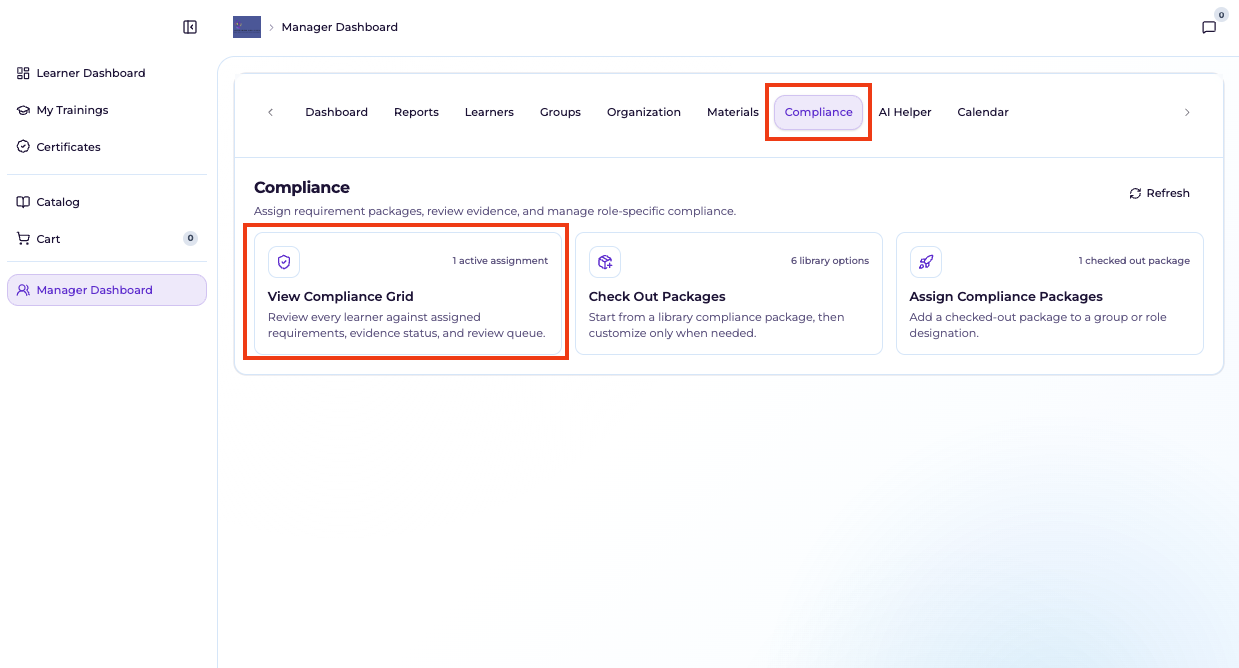
Navigate to the Compliance tab. Click View Compliance Grid (this card displays the number of active compliance assignments).
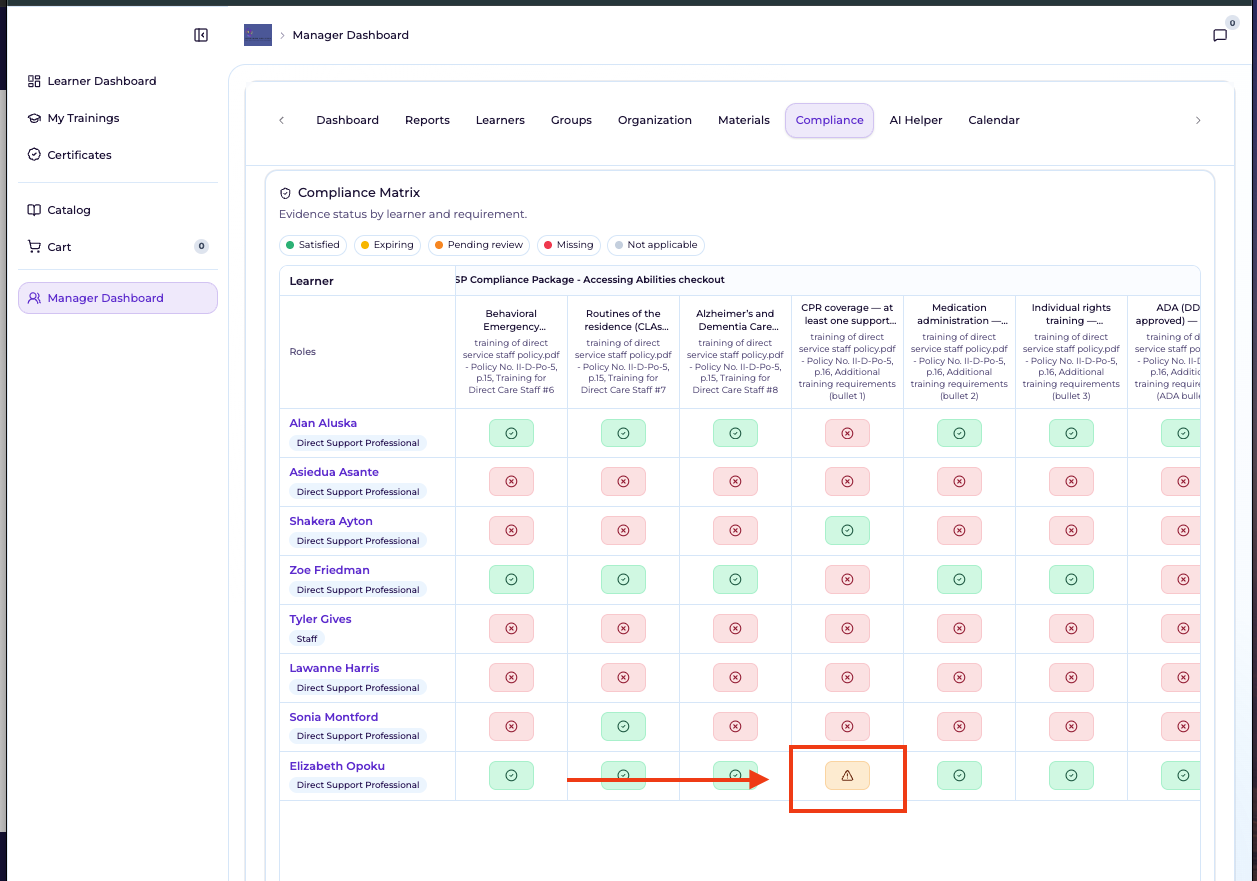
Locate the learner's row and the corresponding compliance requirement column. Pending submissions appear as an orange cell with a warning (triangle) icon, labeled Pending Review in the legend. Click the orange cell to open the Review Compliance Evidence window.
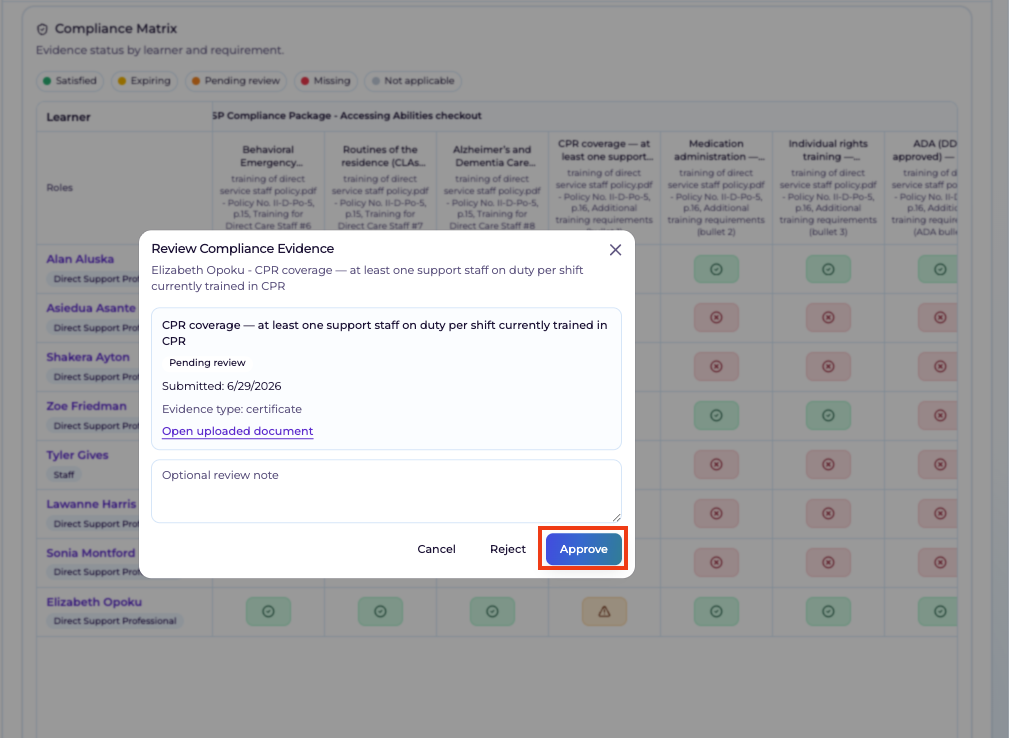
Select Open Uploaded Document to review the learner's submission.
(Optional) Enter any notes.
Click Approve to accept the submission or Reject if the documentation does not meet the requirement.
What Happens After Approval?
The compliance status changes from Pending Review to Satisfied (green).
The learner's compliance requirement is met.
The overall compliance package progress is automatically updated (for example, from 97% to 100%).
Note: Only managers assigned to the learner's group or organization administrators can approve compliance evidence. Learners cannot approve their own submissions.
Was this article helpful?
That’s Great!
Thank you for your feedback
Sorry! We couldn't be helpful
Thank you for your feedback
Feedback sent
We appreciate your effort and will try to fix the article